
What is simulation distance in Minecraft?
Simulation distance is the radius in chunks around each player in which the server updates the world: mobs move, farms and redstone run, crops grow, and water and lava flow. Beyond it, the world can still be visible, but it's frozen like a photo.
The key facts:
- The
simulation-distanceoption inserver.propertiesexists in Minecraft Java since 1.18. The default is10and the allowed range is3–32chunks. - A chunk is 16 blocks wide, so
10means roughly 160 blocks in every direction from a player. - On a server, the server's value wins. The "Simulation Distance" slider in the game's video settings only applies in singleplayer and changes nothing on a server.
- The area is a square, not a circle. At
10, the server simulates 21 × 21 = 441 chunks around each player.
Simulation distance vs view distance – what's the difference?
view-distance controls how much terrain the server sends to a player's game (what you see), while simulation-distance controls how much terrain the server updates (what works). Terrain that's visible but not simulated is scenery: the village is there, but the villagers don't move and the wheat doesn't grow.
view-distance |
simulation-distance |
|
|---|---|---|
| What it does | Sends chunks to the player's game | Updates mobs, blocks, redstone and fluids |
| Default | 10 |
10 |
| Range | 3–32 |
3–32 |
| Main cost | Loading and sending chunks, generating new terrain, bandwidth | CPU on every tick (20 times a second) |
| Too high | Slow terrain loading while exploring, lag during world generation | TPS drops, "Can't keep up!" in the console |
| Too low | Fog close to the player | Farms and machines further away stop working |
Two rules tie them together:
- A simulation distance higher than the view distance does nothing useful – players can't see what happens beyond
view-distance, so the extra range only adds work for the server. - Simulation distance should ideally be lower than view distance. Updating the world costs far more than sending it, so the most common server setup is a long view with a shorter simulation, e.g.
view-distance=10andsimulation-distance=6.
View distance has its own guide (including why the game gets the lower of the server's value and the player's own "Render Distance"), and every other option in the file is covered in Minecraft server.properties explained.
What runs inside the simulation distance – and what doesn't?
Inside the simulation distance, entities (mobs, animals, dropped items, minecarts) tick; in a one-chunk ring just beyond it, only blocks do: redstone, fluids and crop growth. Further out, the world is just loaded or not in the server's memory at all.
| Zone (from the player) | What happens |
|---|---|
Up to simulation-distance |
Everything: mobs move and spawn, farms, redstone, furnaces and crops work |
| A one-chunk ring just outside | Blocks work (redstone, water, lava, crops), but entities are frozen |
Further, up to view-distance |
Terrain is visible, nothing changes |
What this means in practice:
- Mob farms and iron farms only run when someone is close enough. Golems, villagers, mobs in the farm and items on hoppers all need to be inside the simulation distance, or the farm stops.
- A machine on the edge can break itself. Redstone in the ring just outside keeps running while a minecart or mob in the same chunk is frozen – that's how sorters jam and farms get stuck. Keep the whole build closer to the player.
- Mobs only spawn in simulated chunks. With a low value the spawning area is smaller, so the mob cap fills up closer to players.
- Mods and the
/forceloadcommand can keep chunks loaded without players nearby. That's handy for a base, but every such chunk costs server time around the clock, even when nobody is online.
What's the best simulation distance for a server?
On most servers, a simulation distance of 6–8 chunks works best; with a large modpack or many players, 4–6. The default 10 makes sense on a small Vanilla server for a few friends who build big farms.
| Server | simulation-distance |
view-distance |
|---|---|---|
| Vanilla, a few friends | 8–10 | 10–12 |
| Paper/Purpur, 10–30 players | 6–8 | 8–10 |
| Large public server | 4–6 | 6–8 |
| Modpack (Forge, NeoForge, Fabric) | 5–6 | 8 |
| Heavy tech modpack (Create, Mekanism, AE2) | 4–5 | 6–8 |
Numbers worth knowing: going from 10 to 6 cuts the simulated area from 441 to 169 chunks per player (about 62% less), and 4 brings it down to 81. When players stand together, their areas overlap and count once; the heaviest case is a few players spread across different parts of the world.
Don't go too low on a server where people build farms, though: at 3–4, an iron farm or mob farm a few dozen blocks from the AFK spot can stop working. Change the value by 1–2 at a time and watch the TPS.
If your modpack includes a mod that changes the distances on its own while the server runs (such as Dynamic View and Simulation Distances), it's better to disable it and use fixed values – every change it makes forces players to reload chunks, which causes stutters and disconnects.
How to change simulation distance on a Spot.gg server
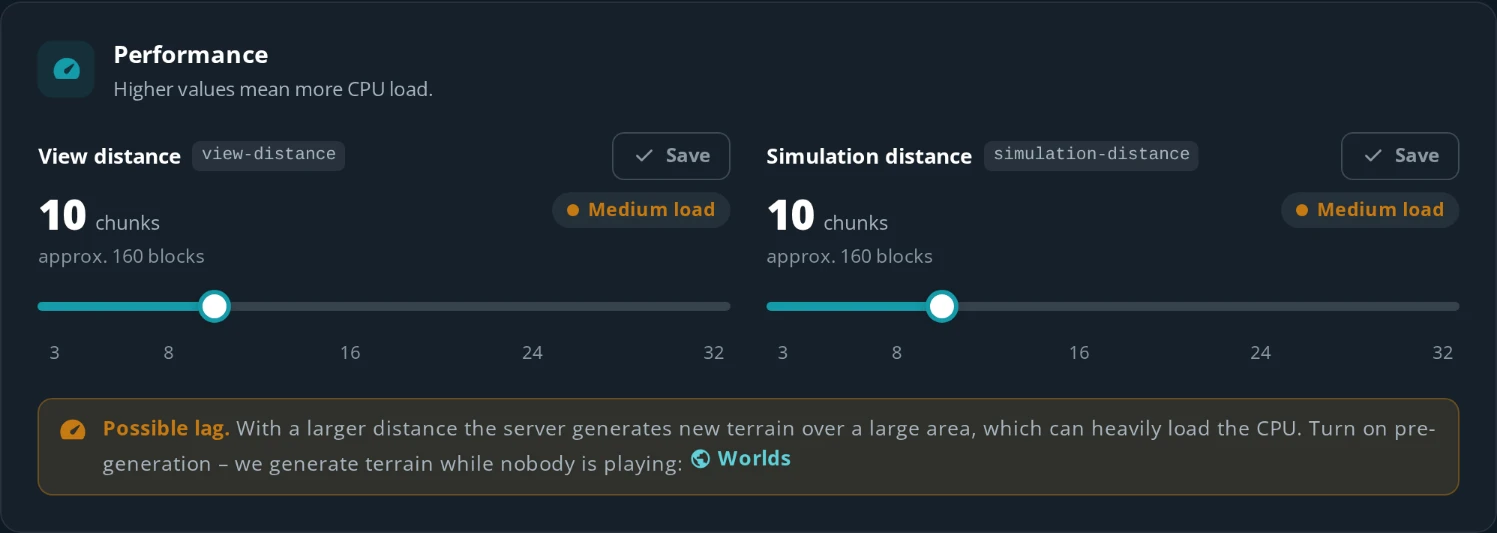
In the panel, open "Configuration" → "Most popular", move the "Simulation distance" slider in the "Performance" card, click "Save" and restart the server. No need to edit the file by hand.
- Open your server and go to the "Configuration" tab, then "Most popular".
- The "Performance" card has two sliders: "View distance" (
view-distance) and "Simulation distance" (simulation-distance), both from 3 to 32 chunks. Under the number of chunks the panel shows the distance in blocks. - Next to the value the panel rates the load: "Light load" up to 8 chunks, "Medium load" from 9 to 12 and "Heavy load" above 12.
- Click "Save" in the field's header. If the simulation distance is higher than the view distance, the panel points out that the value does nothing.
- The change takes effect after a restart – a "Restart now" link appears under the field.
Other ways to do it:
- The "server.properties" tab in "Configuration" – the full list of options with a search box and a "Save changes" button.
- The "Files" tab –
server.propertiesin the server's main folder, linesimulation-distance=6. Edit it while the server is stopped, because a running server can overwrite manual changes.
If you raise the view distance above 8 chunks, the panel warns about lag from generating new terrain and links to the "Worlds" tab, where you can turn on "Pregeneration" – terrain is then generated in advance while nobody is playing.
Paid Minecraft Java servers on Spot.gg start from $3.90 per month.
How to set a different simulation distance for the Nether or the End
On Paper, Purpur and Spigot you can set the simulation distance per world in spigot.yml. Vanilla, Fabric, Forge and NeoForge use a single value from server.properties for every dimension.
In spigot.yml (in "Files", the server's main folder), the value default under world-settings means "use server.properties". To lower the simulation only in the Nether, for example, add a section named after the world folder:
world-settings:
  default:
    simulation-distance: default
    view-distance: default
  world_nether:
    simulation-distance: 4
The section name is the dimension's folder name, e.g. world_nether or world_the_end when level-name is world. The change applies after a restart.
Paper and Spigot also have entity-activation-range in the same file: entities inside the simulation distance but further than, say, 32 blocks from a player (for monsters and animals) are updated less often. That's why the same simulation distance costs less on Paper than on Vanilla.
Will a lower simulation distance fix lag?
Often, yes – if the lag is a TPS drop (mobs "teleporting", blocks reappearing after you break them) and the console shows "Can't keep up!". Fewer simulated chunks means less work on every tick.
Simulation distance won't help when:
- the lag is on the player's side (low FPS, high ping) – the server is fine, and graphics or the connection are to blame;
- the lag appears while exploring – that's new terrain being generated, which pre-generation and a world border fix, not a lower simulation distance;
- a single farm or machine eats the whole tick – find it with a profiler (e.g. spark) and rebuild it; a lower distance only moves the problem.
On modded servers, server-side optimisation mods also help a lot – see the best Minecraft performance mods.
FAQ
What is the default simulation distance on a Minecraft server?
10 chunks, about 160 blocks in every direction from a player. The allowed range in server.properties is 3–32.
Can simulation distance be higher than render distance?
You can set it that way, but players won't see anything beyond the view distance, so it's just extra load. Keep simulation-distance equal to or lower than view-distance.
Does the simulation distance in my game settings work on a server?
No. The "Simulation Distance" slider in video settings only applies to singleplayer and to a world opened to LAN. On a server, simulation-distance from server.properties applies.
Why does my farm stop when I walk away?
Because it's left the simulation distance. Stand closer (an AFK spot in the middle of the farm), raise simulation-distance by 1–2, or – on a modded server – use a chunk loader, keeping in mind that it loads the server all the time.
Can I change simulation distance without restarting?
Vanilla has no command for it – the server reads server.properties on startup. Save the change and restart the server.
What about Minecraft Bedrock?
A Bedrock server has its own tick-distance option in its server.properties (default 4, range 4–12). It works in a similar way, but it isn't the same option as Java's simulation-distance.